Create WhatsApp Forms in mark360.ai
Easily design and deploy WhatsApp Flows directly within your mark360.ai account—no coding required. Choose elements from the intuitive Form Editor and publish fully functional Flows in minutes!
Getting Started with WhatsApp Flows
Setting up Flows in mark360.ai helps automate key customer interactions and streamline communication processes.
You can:
- Create a WhatsApp Flow from scratch
- Or, use a ready-made template from our pre-defined collection
Prefer Watching?
Watch the setup tutorial on YouTube (link here)
Prefer Reading? Follow These Steps:
Create & Publish a WhatsApp Flow Using Pre-defined Templates
-
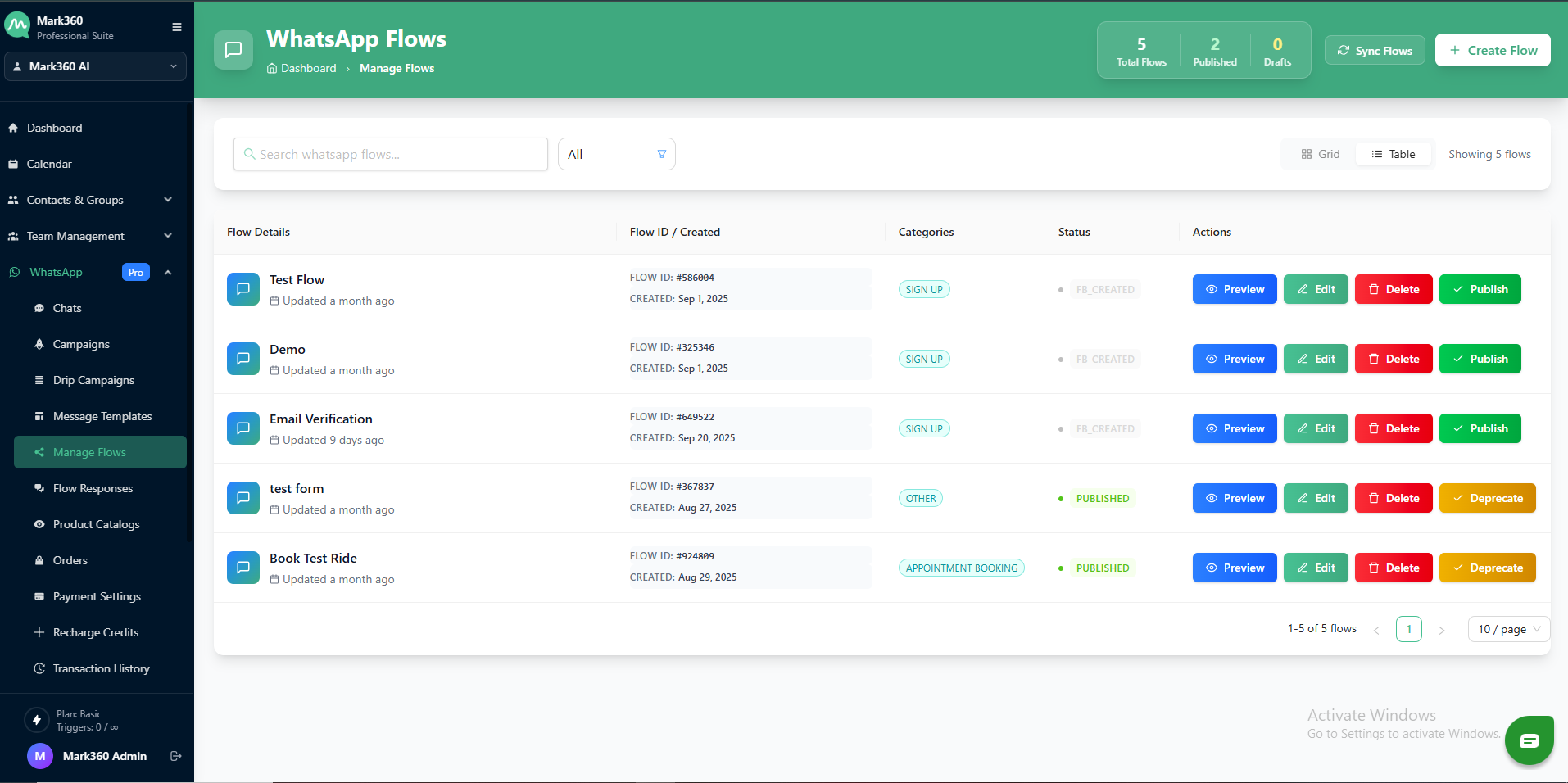
Navigate to Flows
-
From your mark360.ai dashboard, go to Flows in the left-hand menu.
-
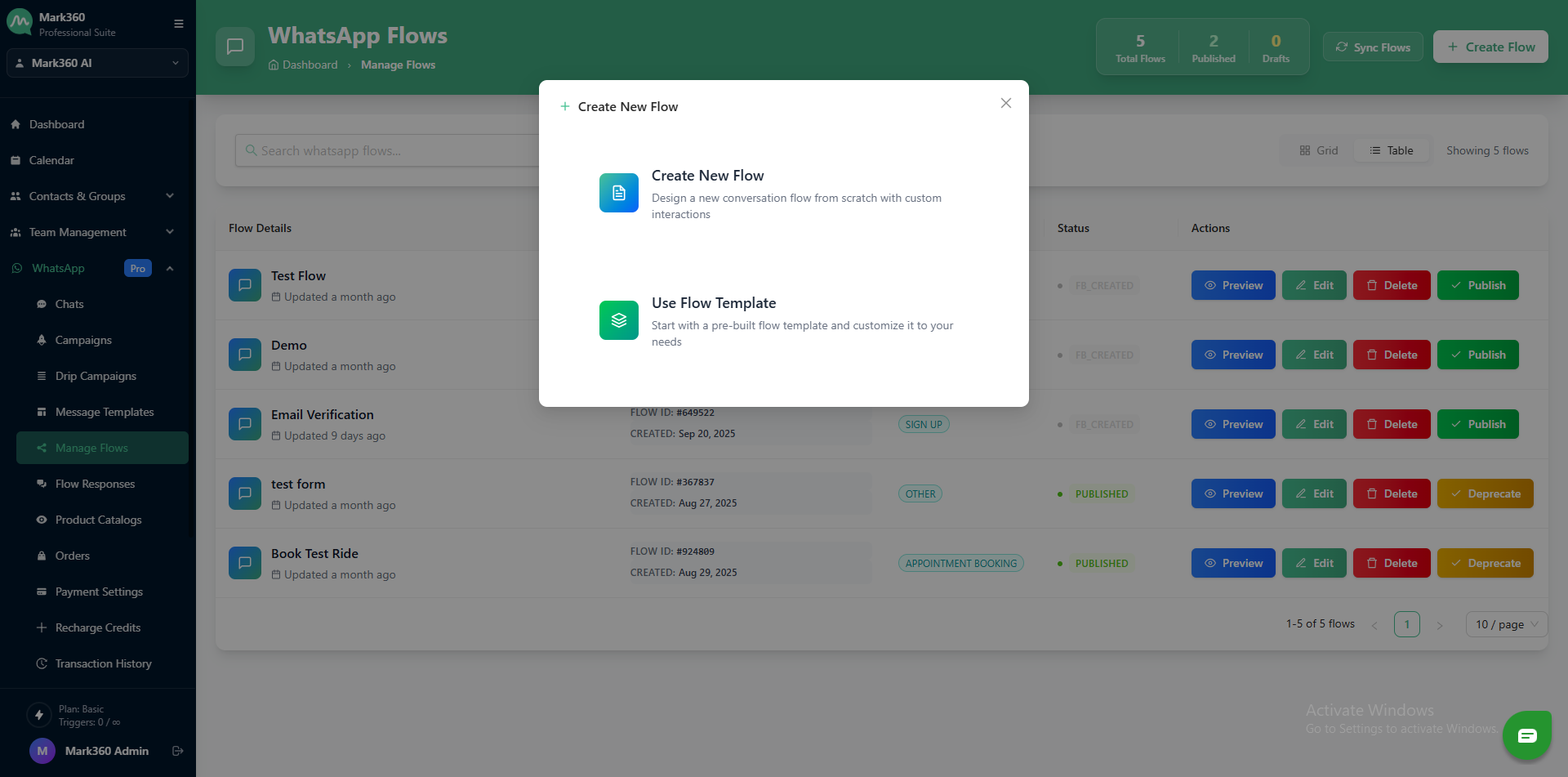
Click Use Flow Template from either the center card or top-right button.
-
-
Choose a Template
Select from pre-defined templates including:- Travel Booking Inquiry
- Webinar Registration
- Feedback Collection
- General Inquiry
- Appointment Booking
✅ A preview panel on the right lets you see how the Flow will appear to your users on WhatsApp.
-
Customize the Template
Click Use this Template to open the builder.
Modify any component or add new ones like:- Date Pickers
- Multi-Choice Options
- Dropdowns
- Images
- Opt-in Fields
Once you're done editing, click Save as Draft.
Flow Structure & Limits
Each Flow can have up to 100 screens. On each screen, you may include:
- Up to 3 Image components
- Up to 20 Single or Multi-choice components
- More than 20 Dropdowns
- Up to 5 Opt-in components
- Max 100 components per screen
- Publish the Flow
Click Publish Flow to make it live.
Once published, you can use the Flow via:- WhatsApp Message Templates
- Canned Responses
- mark360.ai Bot Automations
Build & Publish a WhatsApp Flow from Scratch
-
Go to Flows > Click Create New Flow > Select Build From Scratch
-
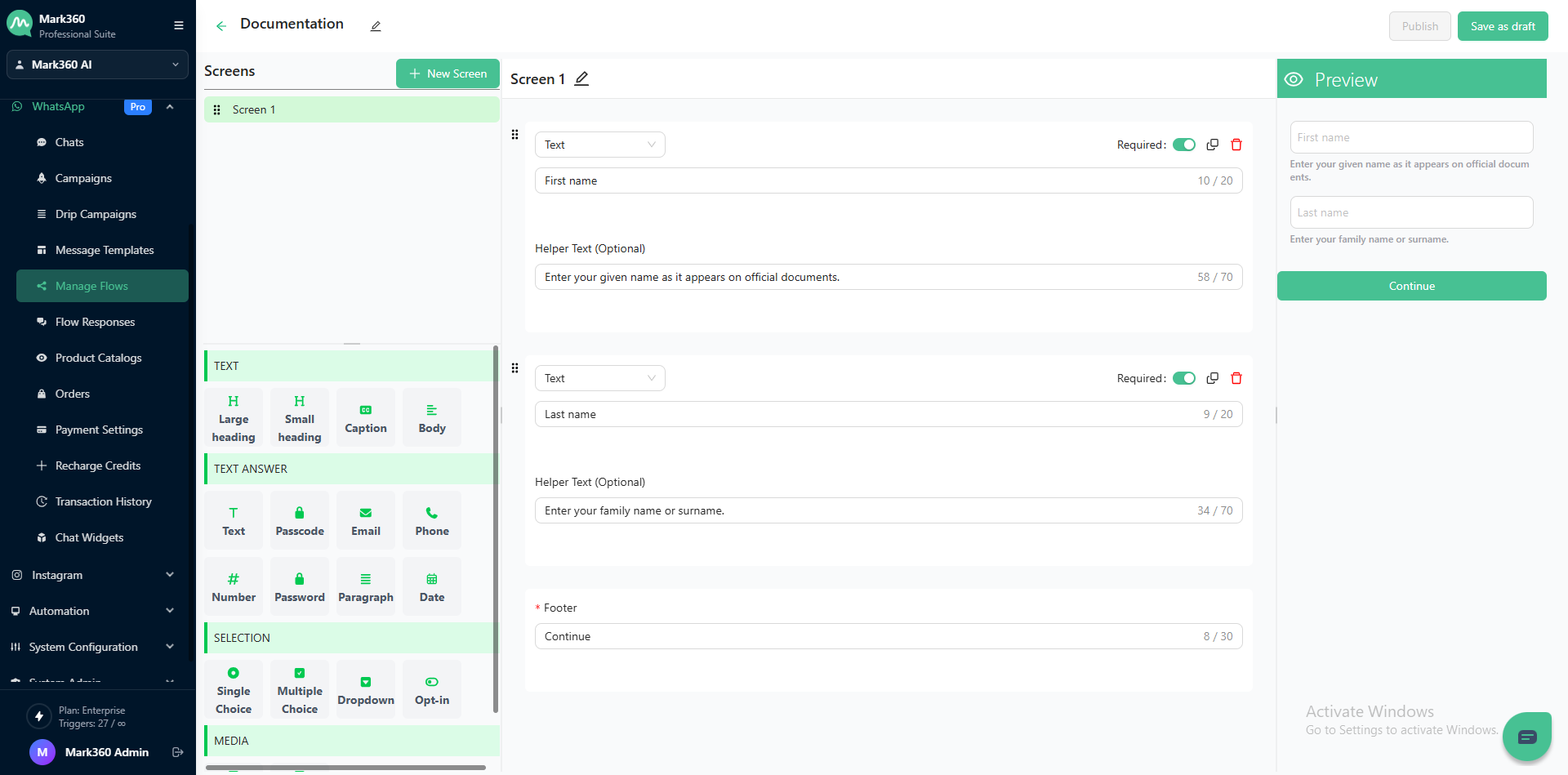
Use the Flow Builder to add your components. Here’s what you can include:
Text Flow Components
| Component | Description | Character Limit |
|---|---|---|
| Large Heading | Main title (H1) for the screen | 80 |
| Small Heading | Subtitle (H2) or section heading | 80 |
| Body | Longer content for messages/guidelines | 4096 |
| Caption | For disclaimers or additional notes | 4096 |
-
Click Save as Draft after adding your components.
Don’t forget to name your Flow and assign it a category. -
When ready, click Publish.
You can now use your Flow in templates, bots, or as canned responses.
Share WhatsApp Flows
Flows created in mark360.ai can be shared via:
- WhatsApp Message Templates
- Canned Responses
- Bots & Automations
Track Responses
Use the Responses tab under Flows to view submissions and customer interactions with each published Flow.
Deprecate a WhatsApp Flow
To unpublish or retire a WhatsApp Flow:
- Click on the Deprecate option in the Flow panel.
- Once deprecated, the Flow cannot be reverted or reused.
With mark360.ai WhatsApp Flows, offer your customers seamless interactions directly within WhatsApp—boosting engagement, lead capture, and support experiences like never before!